The PlanMinder Manual - 02 Home
This is one chapter from the manual. Access the full manual here.
Home
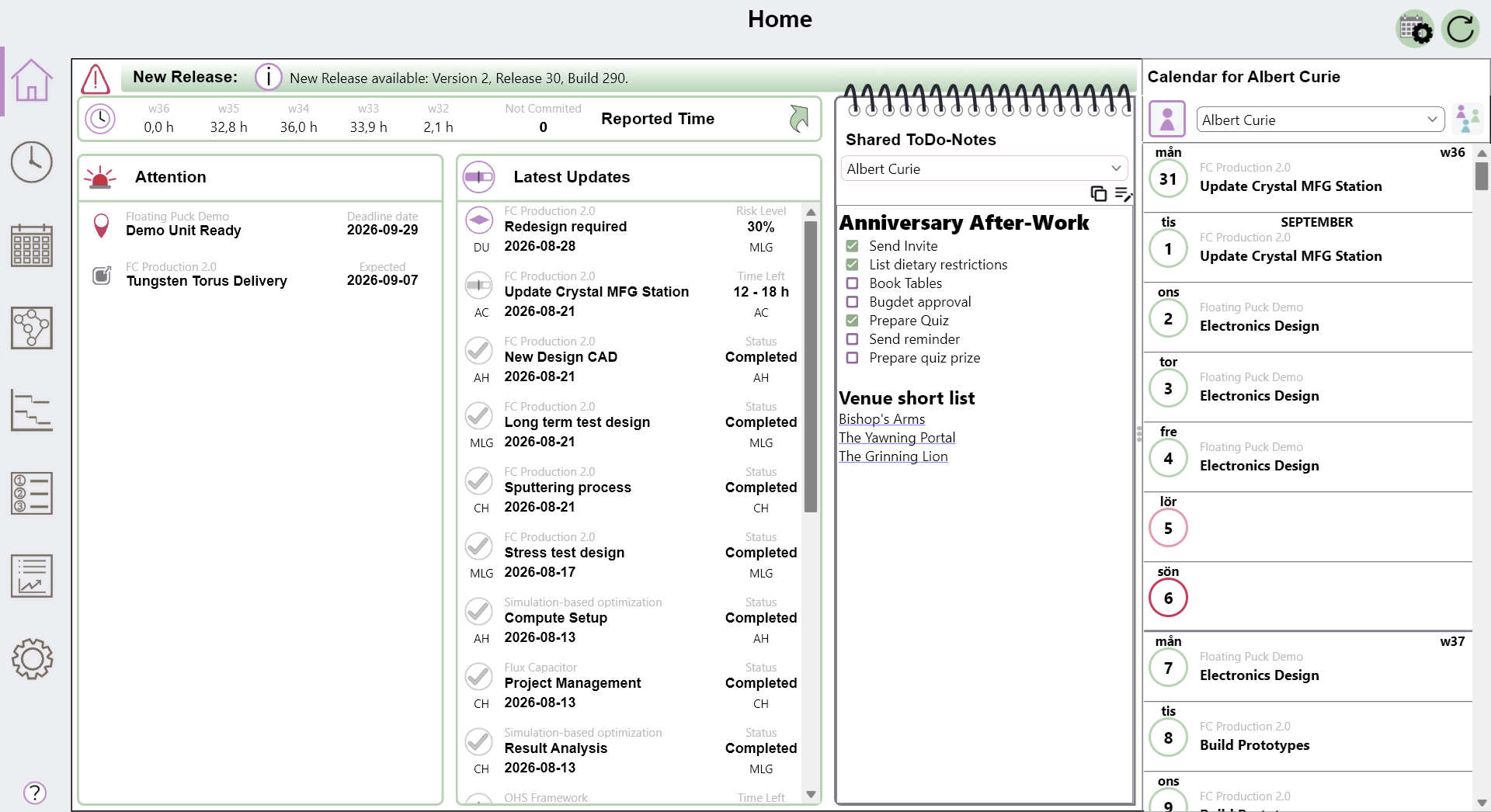
▶ Video reference Developer @ 5:50The home page is designed to give you an overview of the information most important to you. You can click on an area to expand it and reveal more information.
Reported Time

The top area of the page is an overview of your reported time. It shows you how much time you have committed for the last five weeks, and a summary in red of time that has been reported but is not yet committed.
If you click to expand you will see committed time for all developers.
Attention

On the left is the Attention area. Here is a list of activities, deadlines, checkpoints, discrete risks and external activities that need your attention. Click to expand it and show more information. What information is shown, and why the items are in the list, depends on the type of item. It may be that they need, or are likely to need a status update, or for deadlines, that you are likely to, or already have, missed them.
You can click on the symbols in the list to open a dialog. Right-click to open the description overlay.
This list may be empty, and it is limited to 25 items.
Latest Updates

This list shows the latest status updates for activities and discrete risks you are responsible for, or where you are the project manager. It also shows updates to activities your activities depend on, affecting when you can start your work. Click to expand and see the comments for each update.
These four symbols are used:
 Time estimate updated.
 Activity completed.
 Activity completed, but there may be some unscheduled work left for later.
 Discrete risk updated.
Older posts are shown with gray symbols. The list is limited to 25 items. Click or right-click on the symbol to open the description overlay.
Shared Notes

The shared notes area is a simple text field where you can write text. You can select another person in the dropdown list, and read and edit their notes too. It is a bit like the whiteboard you have in the office, or on your office door. Shared Notes uses markdown code for formatting just as descriptions do.
You can use it for ToDo-notes, or whatever you find it convenient for.
Calendar

On the right side there is a calendar. It shows what activities The PlanMinder has scheduled for you each day. You will also see your work schedule entries, like vacations and reserved days.
You can use the drop down list to select another developer and see their calendar.

The team button on the right switches to a team view mode, where you see all developers, but one date at a time. This gives you a quick overview of what everybody is supposed to be working on today or some day in the future.
You can drag the divider to make the calendar view wider, and potentially reveal more information.
If there are multiple activities scheduled on the same day, they are shown in order of most scheduled time. Normally only the first activity is shown, but for the current date up to four activities can be listed.
Interaction
Click on an activity name or milestone symbol to open the description overlay.

Normally you manage when and how much you will be working on the Work Schedule tab. However, clicking on a date circle will bring up a quick menu to add a work schedule rule for that specific date, or to edit an existing rule. It also brings up a date overlay listing all work schedule rules active that day. You can click on a rule row to edit or delete it.

If a calendar row has a symbol for a full day work schedule rule you click on it directly to bring up the rule dialog.
The working from home symbol

The quick menu has a house icon the toggles the working from home symbol on calendar rows. This symbol does not affect scheduling availability, it is just a signal that can be used to inform coworkers when you will be working from another place than the office.
You can ctrl-click on the date circle (or person symbol in the team calendar) to directly toggle the symbol.


