Example Templates
Templates for Categories, Work Types and ongoing projects.
These templates are provided as an example and inspiration for how to set up The PlanMinder with categories for projects, ongoing projects with activities to report non project related time, and a set of work types to categorize the work reported.
The PlanMinder has its background in embedded product development, and the example is based on that environment. It is designed for an R&D team working with product development and maintenance, where the products include electronics and software.
Template files are provided for download to import these settings and projects. You should however adapt the examples to your own needs. Do not include things you do not need or very seldom will use. When importing settings you can select which parts you want.
Manually add things you do need that are missing. Rename things so that your team understand what it is.
How you organize projects and work types becomes part of the user interface. It is important what categories and names you use. Don’t be overly specific. You can always add or change things later when you discover that you need it.
The templates are available in English and Swedish.
Files to download:
Categories and ongoing activities screenshot:
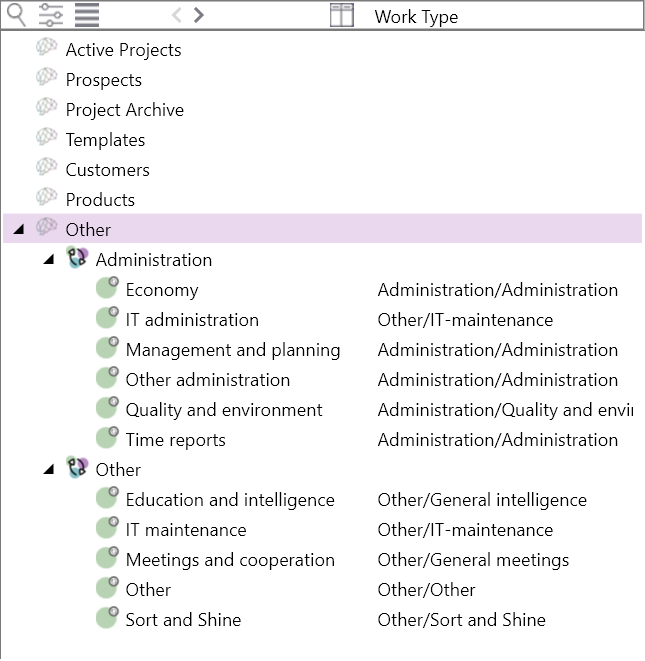
Work Types:
Filer att ladda ner:
Bild på kategorier och löpande aktiviteter i mallarna:
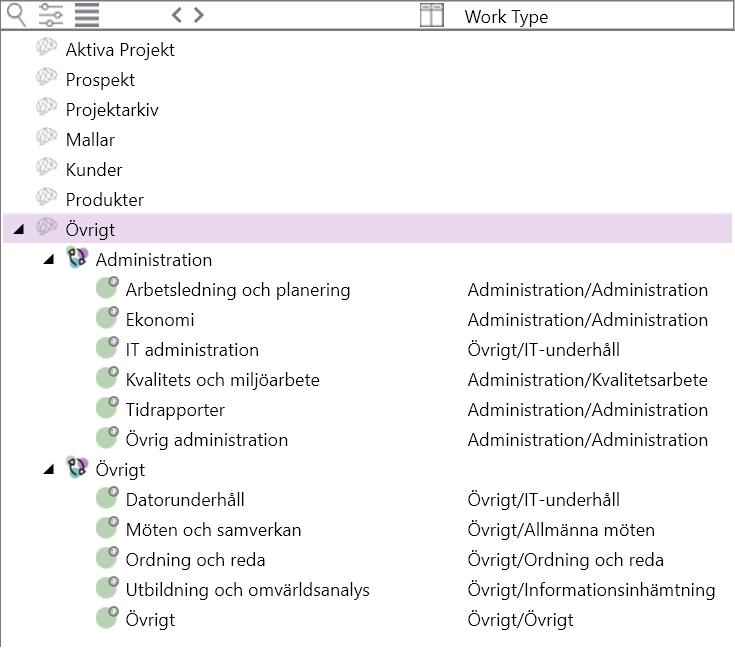
Arbetstyper:
How to import
Download the files you want to import to your computer.
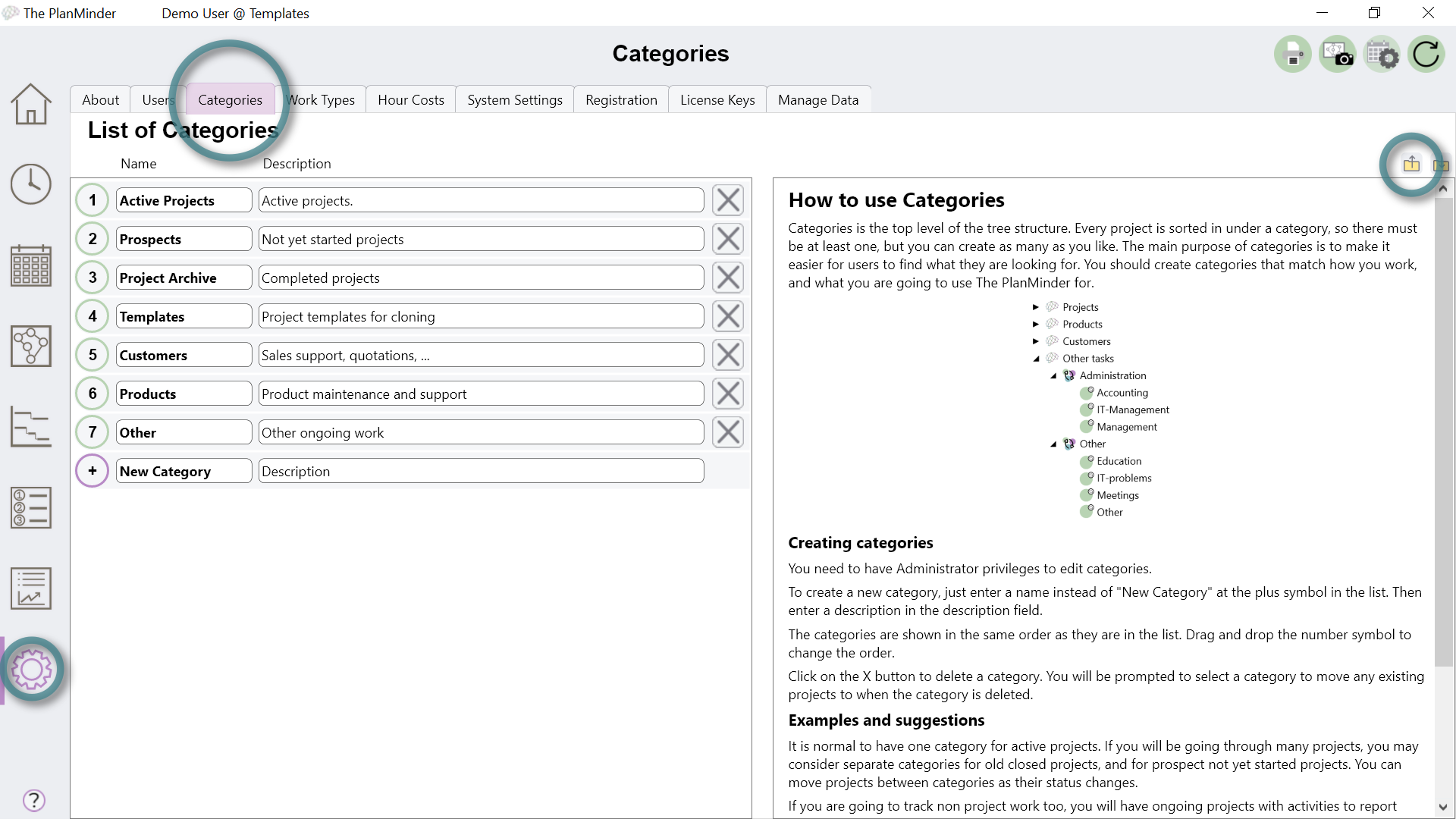
The first file Template Categories and Work Types includes categories and work type settings. Do these imports before any of the project files. Use the  button on the Settings / Categories or Settings / Work Types tab to import this file. The import dialog handles both settings. See help chapter Working with templates for details.
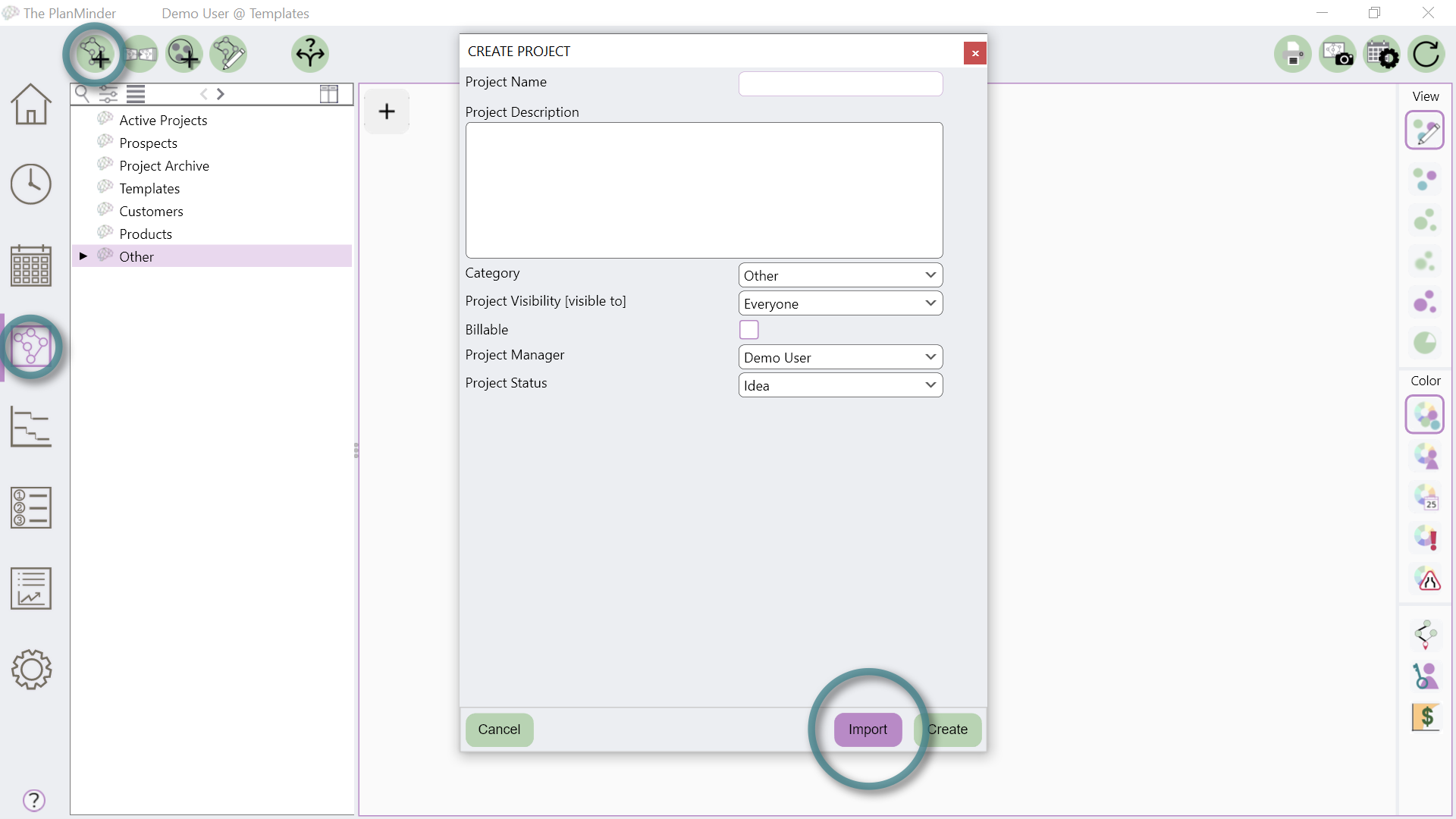
The other two files Template Administration and Template Other contain templates for ongoing projects, as in places to report time that do not belong to a specific project.
Import them by clicking on the new project  button on the Kairos tab, and selecting Import in the dialog.
Change the status of the imported projects to Ongoing. (Double click on the project in the tree view or click the edit project  button to open the dialog.)
A discussion on work types
The work types in the example is on the border of being too specific. The purpose of work types is to be able to track what kind of work and what skills are needed across projects and time. In the template the work type for Software has detailed types for different types of targets. The idea is that this represents different types of skills, and that there is value in tracking how much each of these skills are in demand. Another way to differentiate this is by programming language. If you don't need this differentiation, do not include it.
The Software work type is the most obvious example, but the same principle applies to all work types. More is not automatically better. More choices makes it more difficult to select, and increases the risk that time will be reported with an incorrect work type.
See also:
Setting up The PlanMinder for Your Organization
Help for Categories and Work Types