Download


macOS 64-bit installer
ThePlanMinder V2R24B166 macOS
Release date: 2023-04-19
Includes Demo version and Free Tier Mode.
This release is focused on better descriptions. Elements in a plan has a short description to help everyone understand what the project, activity, milestone or risk is about. Good descriptions are important for team members to understand the scope, to correctly report time and to reduce the risk of work being missed between two interfacing activities.
For this release we set these goals for descriptions:
Description Overlay
To make descriptions more accessible we have created a new description overlay. You can access it by right clicking on a project element almost anywhere. On the home page you can right click on the calendar view, and on the symbols in the attention and latest update panels. You can right click on elements in any project tree view, on activity names on the Report Time Page, on plan elements in Kairos and Chronos view, and on milestones in the Priority view.
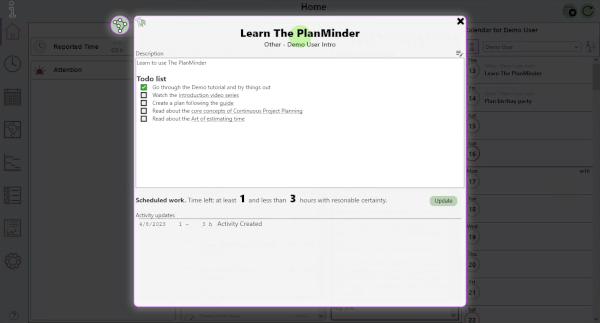
The description overlay shows the description and some other relevant information depending on the element type shown. But the description is not only shown, you can also edit it (if you are authorized to). Changes are automatically saved when the panel is closed. Close it by clicking on the X, or anywhere outside the window.
For project elements there is a project button to the left. Click it to view more information about the project and groups the element belongs to.
Markdown formatting
To enable links, some basic formatting and ToDo-lists, the descriptions now supports markdown formatting. Markdown is used to add formatting information to plain text, while still keeping the text readable as plain text. This is used in places like GitHub, on wikis and many other. In The PlanMinder we use a flat simple markdown, with special extensions.
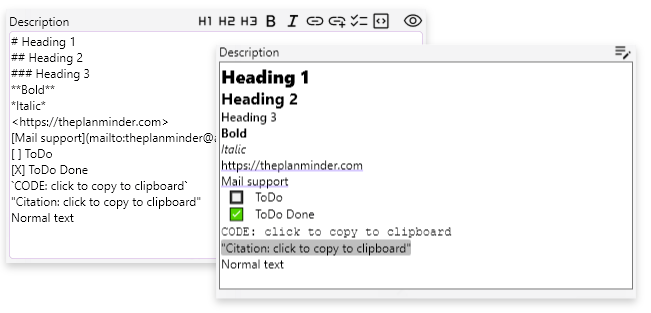
You edit the descriptions as plain text. The tools above help you apply formatting. The eye symbol switches to formatted mode. Flat and simple means that the markdown does not allow nested formatting, and not all options common in other implementations are available.
Links
You can create links in your descriptions. Links can be to https:, file: or mailto:. The user will be asked if they do want to open the link when clicked in formatted mode.
ToDo- lists
For larger activities it can be convenient to have an easily accessible ToDo-list. [ ] and [x] will be replaced with a checkbox symbol in formatted mode. These symbols are clickable and you can toggle between checked and unchecked without entering edit mode. Holding down Ctrl or Ctrl + Shift when clicking lets you circle through other symbols for Active, Paused and Canceled.
Read more in the new help chapter!
This version of The PlanMinder is compiled with a new tool chain and updated libraries. This should improve performance and stability across platforms.
Fixed bugs:
This version has been tested on macOS 13.1 Ventura on M1 Arm hardware.
The downloaded file is a pkg installer, that will install ThePlanMinder and ThePlanMinderDemo app to /Application.
The PlanMinder may ask for permission to access ThePlanMinder-keys in the login keychain to securely store passwords, if you choose to do so. Click Always allow to not be bothered by this dialog every time you are logging in to a database.
macOS releases have the same feature set as Windows releases with the same release number (The R-number). Any differences in functionality will be explained on the Help page.
Login links will not work in macOS. Copy the link string and click the paste button in the login window to copy all settings (except the password).
Install
Download The PlanMinder by clicking the download button. Then start the downloaded .pkg file. The installer will put ThePlanMinder and ThePlanMinderDemo into your /Applications folder.
You will always find the latest version of The PlanMinder on the Download Page, together with more general installation information.
The PlanMinder checks for updates, and will display a notification on the Home screen when a new release is available. You can download the new version from there.
This realease matches the functionality of the Windows release of The PlanMinder.
V The first number is the major version number (V). It increases when there are major functional changes.
The second number is the database format version number. It changes when the database format changes. All users of a The PlanMinder database must use a version with the same database version number. It is not included in the file name.
R The third number is the release number (R). It increases whith every new release introducing new functionality.
B The last number is the build number (B). It increases with every change. Minor bug fixes may be released as a replacement with the same release (R) number but with a new build number.
Previous release 2023-01-23
Read release notes for V2R23B155.