Download


 Windows 64-bit installer
ThePlanMinder V2R29B277
Release date: 2025-10-15
Includes Demo version and Free Tier Mode.
This release:
Project meetings are common for project managers, often involving either presenting the state of projects to stakeholders or reviewing plans and progress with the team. The Presentation View window is designed to facilitate better meetings with less preparation. No need to prepare slides. The PlanMinder provides everything you need to present, and to dig deeper to answer questions during the meeting.

The Presentation View can display project reports side by side with the project plan or schedule, or alongside the priority list. You can show the team availability overview and locate any project on the timeline or find it within a list. Right click on a plan element to open the description overlay.
Color style and background can be adjusted for a polished look. Text size can be tailored to suit the audience and the medium used. To focus on the important information, Presentation View has fewer and smaller icons and no editing capabilities, and can be displayed in fullscreen mode.
You can open the Presentation View window either from the Priority page or the Reports / Project Reports tab.

The question mark icon opens the Presentation View chapter in the manual where you can read more on how to use this window and discover available keyboard shortcuts.
The ToDo symbols in description markdown text have been updated with a new font, consistent across all platforms. You create a ToDo bullet point while editing a description by typing [ ], or pressing CTRL+T (just as before). In display mode this will be shown as a symbol.
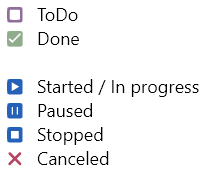
Clicking on a ToDo symbol toggles it between "Done" and "ToDo". CTRL+click to cycle through all available symbols. Shift+CTRL+click cycles backwards. This release adds the "stopped" symbol, [s].
With this release, The PlanMinder is set to use the GPU if available. For most users, this will improve performance and is required for the animated backgrounds in Presentation View.
Performance refers to animation frame rate, responsiveness when resizing panels or the window, and power consumption when animations are active. However, on some hardware and with certain graphics drivers, performance may degrade.
If you encounter issues, there are two startup arguments that change how the GPU is used:
Disables animated backgrounds and reverts to the behavior of Release 28.
Enables the more modern and faster Vulkan graphics backend on Windows. This can significantly improve performance, but may also introduce graphical artifacts or crashes depending on your GPU and driver version.
To add a startup argument on Windows:
You can verify that the argument is used by checking System / About / System Information. Present arguments will be listed after GlobalUseVulkan.
If power consumption is your main concern, you can also disable the timer pulse animation in Settings / System Settings under User Preferences.
Download The PlanMinder by clicking the download button. Then run it. The installer will replace your existing version of The PlanMinder. You will have to close any open instance of The PlanMinder during the installation process.
You will always find the latest version of The PlanMinder on the Download Page, together with more general installation information.
The PlanMinder checks for updates, and will display a notification on the Home screen when a new release is available. You can start an automatic update from there.
This release matches the functionality of the macOS release of The PlanMinder.
V The first number is the major version number (V). It increases when there are major functional changes.
The second number is the database format version number. It changes when the database format changes. All users of a The PlanMinder database must use a version with the same database version number. It is not included in the file name.
R The third number is the release number (R). It increases with every new release introducing new functionality.
B The last number is the build number (B). It increases with every change. Minor bug fixes may be released as a replacement with the same release (R) number but with a new build number.
Previous release 2025-03-07
Read release notes for V2R28B254.