Download


 Windows 64-bit installer
ThePlanMinder V2R30B290
Release date: 2026-03-18
Includes Demo version and Free Tier Mode.
macOS version: Click Here
This release has a cooperation theme with a new setting for Deputy Project Manager, and the new Project Live View window to make collaborative project planning easier.
Existing databases require a schema update to store new settings. The update is performed when logging in with the Service user.
In this release:
A new setting in the Project dialog allows you to appoint deputy project managers. A deputy project manager has the same ability to edit the project as the actual project manager. You can appoint specific persons, or all users with certain privileges.
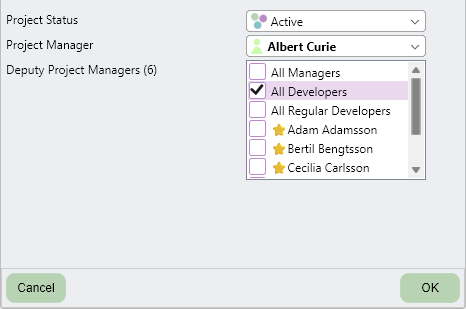
This will make it easier to keep projects going even if the project manager is unavailable. The only limitation is that a deputy manager is not able to create or edit project reports.
Deputy project managers will be listed on the description overlay for projects. Users with the Administrator privilege will just as before always be able to edit all projects without being designated as a deputy.

The Live View window can be opened from the Kairos tab. It will show the active project in a new window of the same type as Presentation Mode introduced in release 29. The big difference is that Live View will automatically detect when anyone makes a change to the project, and reload to always display the active state of the project.
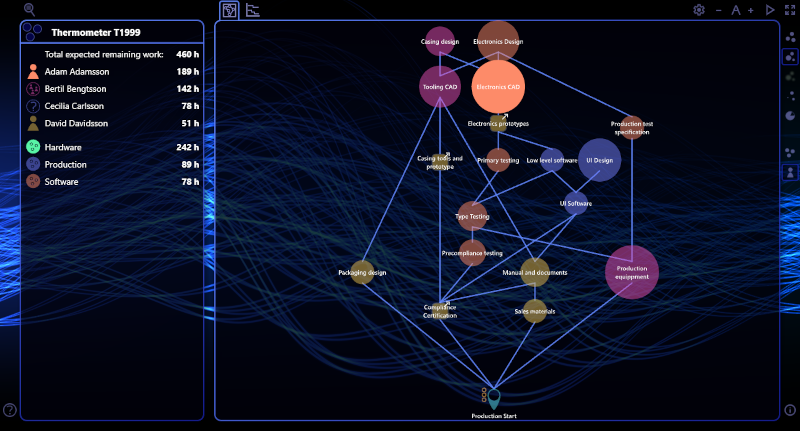
The intended use is for project planning meetings, where multiple people cooperate to create, edit, and update a project plan. Display the Project Live View on a shared screen, where everyone can see updates in real time as team members contribute from their own computers.
Use the new Deputy Project Manager setting to deputize all Developers for the session, and the whole team can fully participate in the creative planning process.
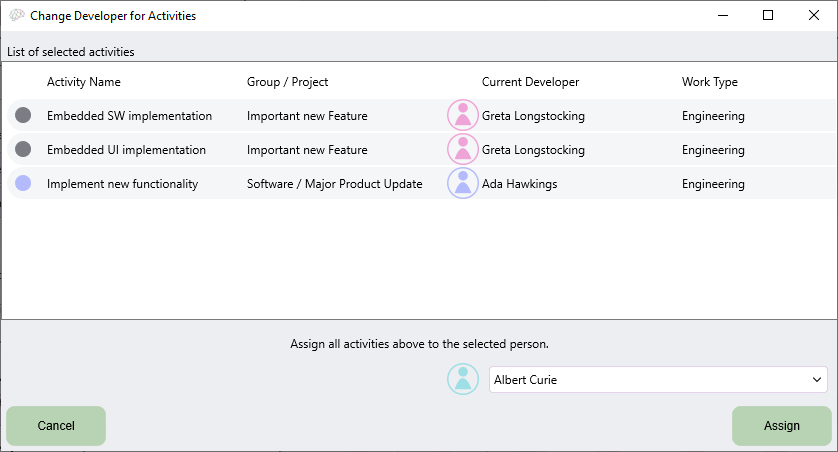
With one or more activities selected in Kairos view, you can now open a dialog to reassign all of them to a new developer. It is the same dialog already available in Chronos view.
Use CTRL-click to select activities, or CTRL-drag to use a selection box. The keyboard shortcut p will open the Change Developer dialog box. Another option, when “Color by Developer” is selected, is to double-click on the developer legend.
In this release the Demo version has new example projects. If you have used the Demo before, you will need to select “Restore and Start” to replace the examples you have seen before with the new ones, when you start the demo.
The new examples are from a fictional product development team, working on several projects. There is potential to optimize the planning, and a history of past work to explore.
The Demo can be useful when onboarding new team members, as it is a sandbox where you can safely experiment and learn how The PlanMinder works.
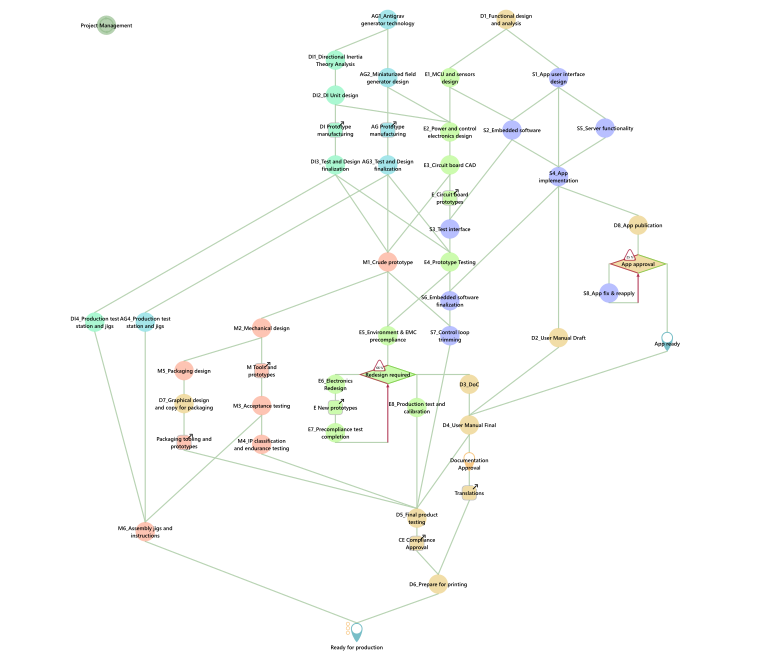 One of the projects, Antigrav Hoverboard, from the demo.
This release fixes three issues in V2R30B286:
Build 290 is a patch replacing V2R30B286 released 2026-02-23.
Download The PlanMinder by clicking the download button. Then run it. The installer will replace your existing version of The PlanMinder. You will have to close any open instance of The PlanMinder during the installation process.
If you are updating from Release 29 or earlier, the database must be updated too, to be able to support the new features. To update the database, log in using the Service user. The Service user was used to create the database, and is set as the database owner on the Postgres server. Make sure to select the Service Login tab. Click OK when asked if you want to update the database. Once you’re logged in, the update is complete, and you can close and log in with your normal user again.
When the database has been updated, other users will be prompted to update to Release 30 when trying to log in with an older version.
If you cannot, or prefer not to, update the database, download and install Release 29 again to continue to use The PlanMinder.
You will always find the latest version of The PlanMinder on the Download Page, together with more general installation information.
The PlanMinder checks for updates, and will display a notification on the Home screen when a new release is available. You can start an automatic update from there.
This release matches the functionality of the macOS release of The PlanMinder.
The PlanMinder uses the GPU if available. For most users, this will improve performance and is required for the animated backgrounds in Presentation and Live View.
Performance refers to animation frame rate, responsiveness when resizing panels or the window, and power consumption when animations are active. However, on some hardware and with certain graphics drivers, performance may degrade.
If you encounter issues, there are two startup arguments that change how the GPU is used:
Disables animated backgrounds and reverts to the behavior of Release 28.
Enables the more modern and faster Vulkan graphics backend on Windows. This can significantly improve performance, but may also introduce graphical artifacts or crashes depending on your GPU and driver version.
To add a startup argument on Windows:
You can verify that the argument is used by checking System / About / System Information. Active arguments will be listed after GlobalUseVulkan.
If power consumption is your main concern, you can also disable the timer pulse animation in Settings / System Settings under User Preferences.
V: The first number is the major version number (V). It increases when there are major functional changes.
The second number is the database format version number. It changes when the database format changes. All users of a The PlanMinder database must use a version with the same database version number. It is not included in the file name.
R: The third number is the release number (R). It increases with every new release introducing new functionality.
B: The last number is the build number (B). It increases with every change. Minor bug fixes may be released as a replacement with the same release (R) number but with a new build number.
Previous release 2025-10-15
Read release notes for V2R29B277.