Download


 Windows 64-bit installer
ThePlanMinder V2R31B296
Release date: 2026-09-07
Includes Demo version and Free Tier Mode.
macOS version: Click Here
This release has a theme of monitoring progress, with a new overlay and updates to the home overview screen.
Existing databases require a schema update to store new settings. The update is performed when logging in with the Service user.
In this release:
The purpose of the progress overview overlay is to make it easier to access and understand how work is progressing.
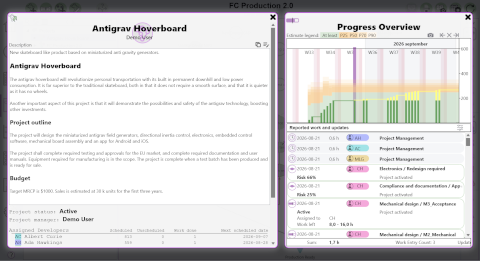
The description overlay, which you can open by right-clicking on any plan element on almost any screen, now has this symbol on the right side for projects, activities, and activity groups:

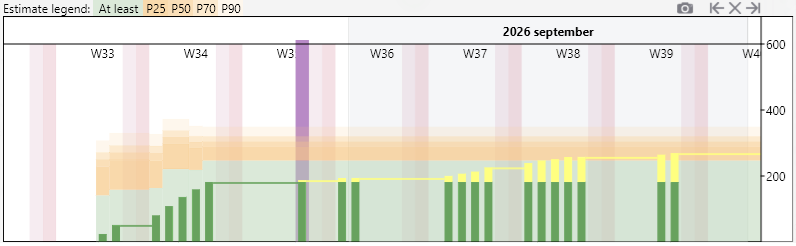
The y-axis represents the amount of work in hours, and the x-axis represents calendar time. The green bars show the accumulated amount of work done. The current date is marked with purple, and to the right of the purple line planned work is added as yellow onto the green lines.
The green and orange semi-transparent background shows how estimates and probabilities have changed over time. The estimate legend on top shows how to decode the colors into probability levels of how much total work will be required. This gives you a quick impression of how the project, activity group, or activity has changed since first planned, and if there are trends.
Below the plot is a list of time and update reports, showing you the details of what has happened in the project. A small green arrow on the timeline indicates the date of the report currently under the mouse pointer.
Read more about the Progress Overview in the new help chapter.
Release 31 introduces change reports for discrete risks. These are automatically created when the status or risk level of a discrete risk is updated.

They will appear in lists of time and update reports, as on the progress overview, and on the Latest Updates list on the Home screen.
The Latest Updates list on the Home screen has been updated to now also list updates to activities your activities depend on. Updates to these activities affect when you can start your work and are probably interesting to you.
The list still includes activities you are responsible for either as a developer or as a project manager and, as introduced in this release, discrete risks you are responsible for.
Release 31 makes a small but important change to what happens when you drag and drop a file or HTTPS link on a description field. Just as before, a link is created, but it will now be inserted as a new line below the line the cursor is on, instead of last in the description. An email you drop will still be inserted at the end (if possible).
In edit mode, the whole editor input is a drop target, but when shown as markdown it is only possible to drop links in the white area below the text. If the cursor has not been used, the link will be inserted as the second line in the description.
A new field has been added to the Settings / Registration form: Secondary email address
This address is used together with the contact person email address when a registration password reset is requested. Preferably, use an email address that is tied to a function rather than a person in case the registered contact person becomes unavailable.
The Change Password dialog now has an option for initiating a password reset request, in case the registration password has been lost.
The PlanMinder now remembers the registration password, stored encrypted using a secure operating system API.
When registration information is updated, it is sent to the Auspicia AB server when the "Change Information" button is pressed. If this fails, there may be a discrepancy between what you see in the form and the information Auspicia has and uses. This release introduces a mechanism that calculates and compares hash values for the stored registration information, and displays a warning symbol if there is a mismatch.
The form has also been updated to fix some issues that may occur when entering a VAT number.
When creating dependencies in Kairos View, The PlanMinder can now detect and prevent dependency loops involving discrete risks, which previously could cause the scheduler to fail.
Download The PlanMinder by clicking the download button. Then run it. The installer will replace your existing version of The PlanMinder. You will have to close any open instance of The PlanMinder during the installation process.
If you are updating from Release 30 or earlier, the database must be updated too, to be able to support the new features. To update the database, log in using the Service user. The Service user was used to create the database, and is set as the database owner on the Postgres server. Make sure to select the Service Login tab. Click OK when asked if you want to update the database. Once you’re logged in, the update is complete, and you can close The PlanMinder and log in with your regular user again.
When the database has been updated, other users will be prompted to update to Release 31 when trying to log in with an older version.
If you cannot, or prefer not to, update the database, download and install Release 30 again to continue to use The PlanMinder.
You will always find the latest version of The PlanMinder on the Download Page, together with more general installation information.
The PlanMinder checks for updates, and will display a notification on the Home screen when a new release is available. You can start an automatic update from there.
For automated installs and updates, the installer can be run without graphical UI and user interaction using the /VERYSILENT argument. You can also add the argument /LOG="filename.log" to generate a log file for the installation process.
This release matches the functionality of the macOS release of The PlanMinder.
The PlanMinder uses the GPU if available. For most users, this will improve performance and is required for the animated backgrounds in Presentation and Live View.
Performance refers to animation frame rate, responsiveness when resizing panels or the window, and power consumption when animations are active. However, on some hardware and with certain graphics drivers, performance may degrade.
If you encounter issues, there are two startup arguments that change how the GPU is used:
Disables animated backgrounds and reverts to the behavior of Release 28.
Enables the more modern and faster Vulkan graphics backend on Windows. This can significantly improve performance, but may also introduce graphical artifacts or crashes depending on your GPU and driver version.
To add a startup argument on Windows:
You can verify that the argument is used by checking System / About / System Information. Active arguments will be listed after GlobalUseVulkan.
If power consumption is your main concern, you can also disable the timer pulse animation in Settings / System Settings under User Preferences.
V: The first number is the major version number (V). It increases when there are major functional changes.
The second number is the database format version number. It changes when the database format changes. All users of a The PlanMinder database must use a version with the same database version number. It is not included in the file name.
R: The third number is the release number (R). It increases with every new release introducing new functionality.
B: The last number is the build number (B). It increases with every change. Minor bug fixes may be released as a replacement with the same release (R) number but with a new build number.
To ensure that your installation of The PlanMinder is authentic and safe, you can verify that the installer is digitally signed by Auspicia AB. Right-click the downloaded file, choose Properties, and open the Digital Signatures tab. You should see that the file has been signed by Auspicia AB. Select the signature and click Details to confirm that the certificate is valid and issued to Auspicia AB.
A valid signature guarantees that the installer has not been modified and comes directly from the publisher, even if Windows SmartScreen warns that the file is not downloaded very often.
Read release notes for V2R30B290.