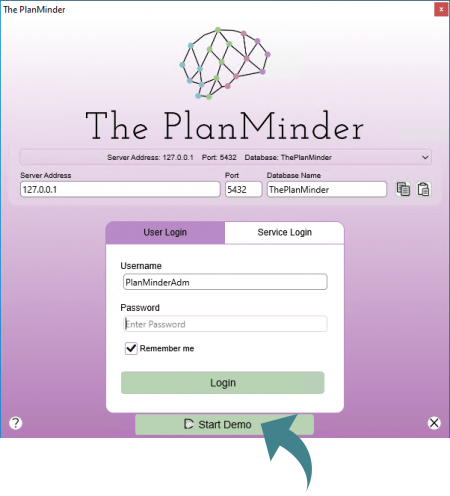
When The PlanMinder starts (after installing), a login dialog is displayed. At the bottom of the dialog there is a Start Demo button.
It will log you in as 'Demo User' on a local database with some example projects, designed to illustrate different aspects of The PlanMinder. You can create new projects, play around with the existing ones, look at project reports and history, report work, change priorities and estimations, and test most aspects of The PlanMinder. By necessity there are a few things you will not be able to do in the demo version, like change advanced settings and create new users.
The next time you launch the demo you can continue from where you left off, or reset the database to its pristine state.


 .
.